Starbucks
Buy a gift card to earn 7% cashback at Starbucks.
Purchase e-gift cards available from $15–$500 that are redeemable in-store and online.
Get more at Starbucks
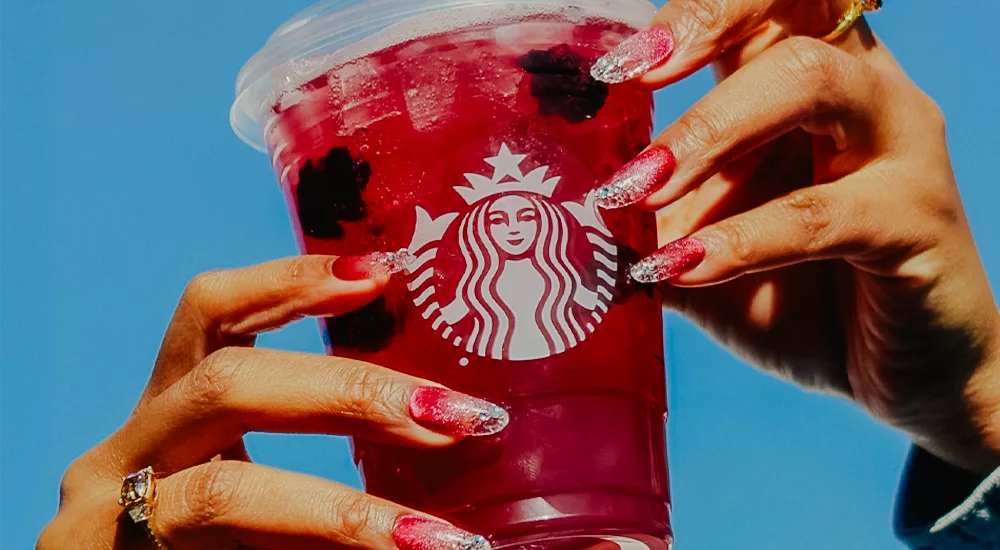
Stack deals to earn more on your next Starbucks visit
Getting your favorite coffee fix doesn’t have to come at full price. With the right combination of Fluz cashback strategies, gift card rewards, and loyalty points, you can turn your everyday Starbucks purchases into real savings.Specifications
Add your Fluzpay Gift Card Code into the Starbucks app for additional rewards!
Card format
Digital gift cardCard issuer
StarbucksCountry restrictions
United States onlyLanguage
EnglishRedeemable
Online and in-storeCall support
1-800-782-7282Gift card help center
Store locations
Refundable
Non-refundableExpiration
Does not expireReloadable
Non-reloadableUPC
07675016707Origin
United StatesTerms and conditions
Delivery method
Frequently asked questions
What is a Starbucks digital gift card?
Who can purchase Starbucks digital gift cards from Fluz?
Can I buy gift cards from Fluz and have them sent to someone else?
What payment methods can I use and when am I charged for a gift card from Fluz?
Are there any fees associated with a Starbucks digital gift card?
Is my purchase secure on Fluz?
Are there shipping restrictions for digital gift cards from Fluz?
How can I place a corporate gift card order on Fluz?
Can I cancel my purchase of a Starbucks digital gift card from Fluz?
How can I track my spend and balance of a Starbucks digital gift card from Fluz?
What if my digital gift card is lost or stolen?
I made a purchase with my digital gift card on Fluz and it was cancelled. What do I do?
What if I need to make a return for something I purchase using a gift card?
What if someone makes a copy of my printed digital gift card?
Starbucks
Similar offers


See how to maximize your money with Fluz
Demo the platform to learn more about earning cashback with Fluz.
Name and logo used for identification only; all trademarks are the property of their respective owners.